Audit logs
The Audit logs page is the operator surface for administrative and security-relevant events. It records who changed operational state, what kind of target was affected, when the event happened, and whether the action succeeded.
Use this page when you need to answer:
- who changed a Pool, upstream, API key, invite, operator, setting, or session
- when an administrative action happened
- whether the action succeeded or failed
- which Pool or target record was involved
- which sanitized detail fields changed
- whether a recent operational issue lines up with an admin action
Audit logs are redacted metadata. They do not show raw credentials, raw Pool API keys, passwords, TOTP secrets, upstream auth.json contents, prompt text, generated content, request payloads, provider responses, or raw secret settings.
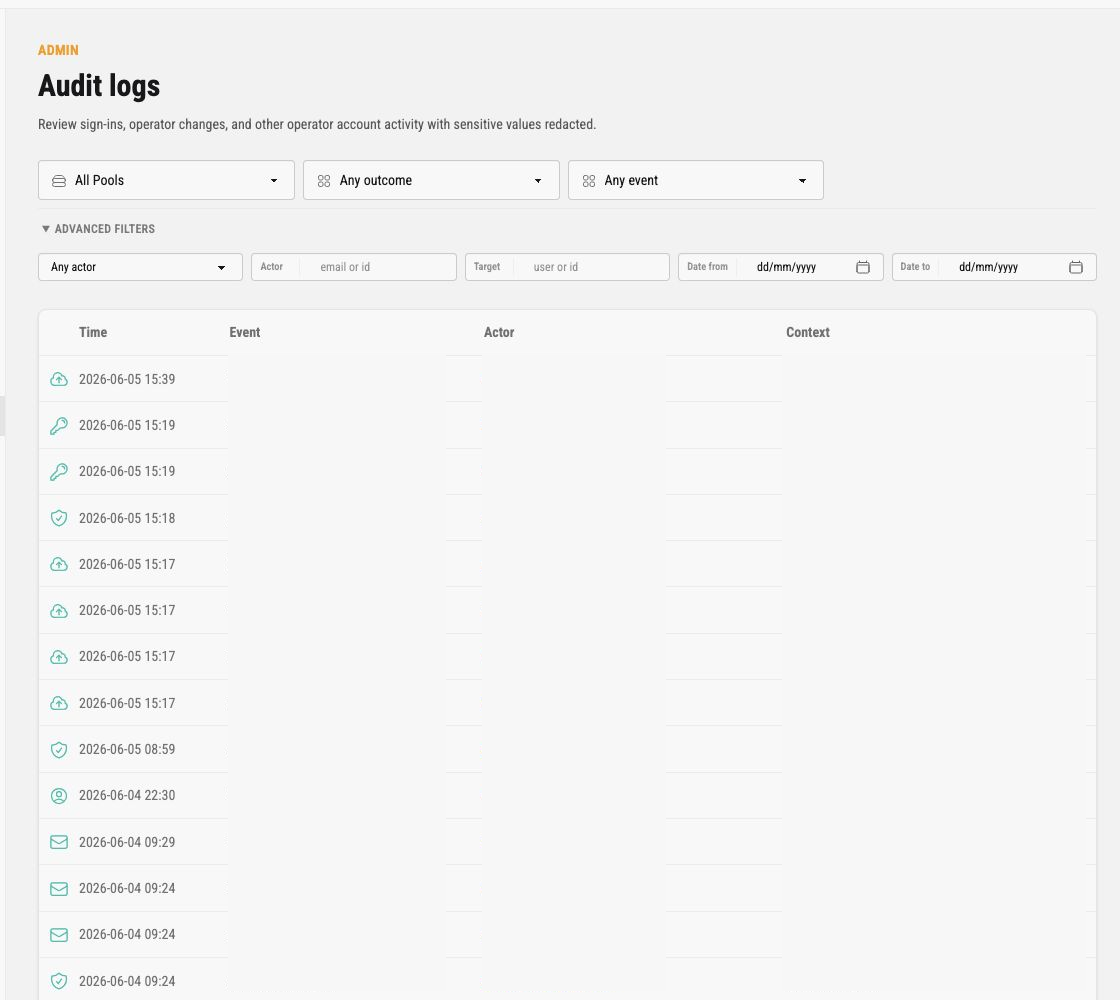
The screenshots in this guide use synthetic example data. The production UI shows safe operator metadata to authorized users for their own instance.
Filters
Section titled “Filters”The top filters narrow the table.
| Filter | Meaning |
|---|---|
| Pool | Limits events to one Pool when the event has Pool scope. |
| Outcome | Limits events to successful or failed actions. |
| Event | Limits events to one supported audit action. |
| Actor type | Advanced filter for user or system actors. |
| Actor | Advanced text filter for actor metadata, such as safe email or id. |
| Target | Advanced text filter for target metadata, such as target kind or id. |
| Date from / Date to | Advanced date range filters. |
Unsupported filters are ignored with a warning. The table is limited to the latest matching rows for fast operator review. The pager counts at most 10,000 events past the current page; past that it shows a lower bound such as 10000+ and the next page stays available.
Event List
Section titled “Event List”The list is designed for scanning. Events are grouped by day, newest first, and every event reads as one sentence, such as “an operator updated the API key Release assistant in the Pool Example Production”.
| Part | Meaning |
|---|---|
| Event icon | Visual category of the action, such as sign-in, operator, Pool, upstream account, API key, invite, or alert. |
| Time | Event time in the signed-in operator’s time zone (UTC by default). Click the timestamp to open the details drawer. |
| Actor | User or system actor that caused the event. Click an actor to filter the list by it. |
| Action and target | What was done and to which record, such as an API key label, an upstream account label, or an invited email. A target that belongs to a Pool names the Pool, and clicking the Pool filters the list. |
| Failure marker | A failed action ends with failed and a short sanitized reason. Click it to show only failed events. |
Details Drawer
Section titled “Details Drawer”Click a timestamp to open the right-side event drawer.
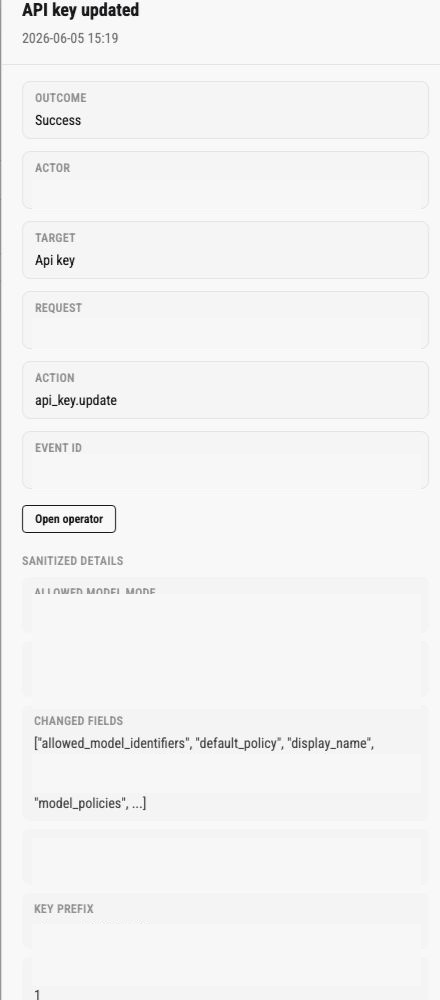
The drawer shows:
- event title and timestamp
- outcome
- actor
- target kind
- request, correlation, and event ids when available
- action name
- links to the operator or related record when safe and visible
- sanitized details
Sanitized details are the useful part of most investigations. They can show changed field names, counts, safe labels, safe prefixes, policy modes, target kind, or route metadata. They should not contain raw secret values or private request content.
Common Events
Section titled “Common Events”Common audit events include:
- operator sign-in and account changes
- Pool creation, edit, archive, reactivate, and delete actions
- upstream import, rename, pause, reactivate, refresh, or recovery actions
- Pool API key creation, edit, rotate, pause, resume, revoke, and delete actions
- invite creation and acceptance
- system setting updates
- MCP token creation, rename, or deletion
Use Audit logs with Request logs when routing behavior changes unexpectedly. Request logs show runtime symptoms; Audit logs show whether an operator or system action changed routing or policy around the same time.
Operational Checklist
Section titled “Operational Checklist”When investigating an administrative change, check audit logs in this order:
- filter by Pool if the issue is Pool-scoped
- filter by Event if you know the action family
- filter by Actor when the operator identity is known
- narrow the date range to the incident window
- open the details drawer for the strongest matching event
- review changed fields and related links
- compare the timestamp with Request logs and System jobs when needed
If an event is missing, confirm the action was inside your visible Pool scope. Owners can inspect global history; assigned admins see Pool-scoped events they are authorized to operate.