# OpenHands on Codex Pooler
OpenHands Agent Canvas is a browser workspace for coding agents. Its backend runs tools, edits project files and manages conversations. Connect a native OpenHands agent to Codex Pooler to use the models available in your Pool.

## Before you start
- Follow the official [Agent Canvas setup guide](https://docs.openhands.dev/openhands/usage/agent-canvas/setup). This guide uses the released Docker image `ghcr.io/openhands/agent-canvas:1.24.0`, with agent-server `1.49.6` and automation `1.15.1`.
- Have a Codex Pooler URL reachable **from the Canvas backend**, and a project directory mounted into that container.
- Create a [Pool API key](/getting-started/quick-start/) and choose a model available to that Pool.
- Prefer **Full** serving mode when you need parallel tool calls. Both Full and Lite were checked for native tools and sub-agent delegation; Lite serializes tool calls.
With the official Docker setup, open Agent Canvas at `http://localhost:8000/canvas`. Keep the container's `.openhands` state and your project directory on separate persistent mounts, as shown in the upstream installation guide. Publish the UI port only to loopback for a local installation.
## Configure the connection
### Select the OpenHands agent
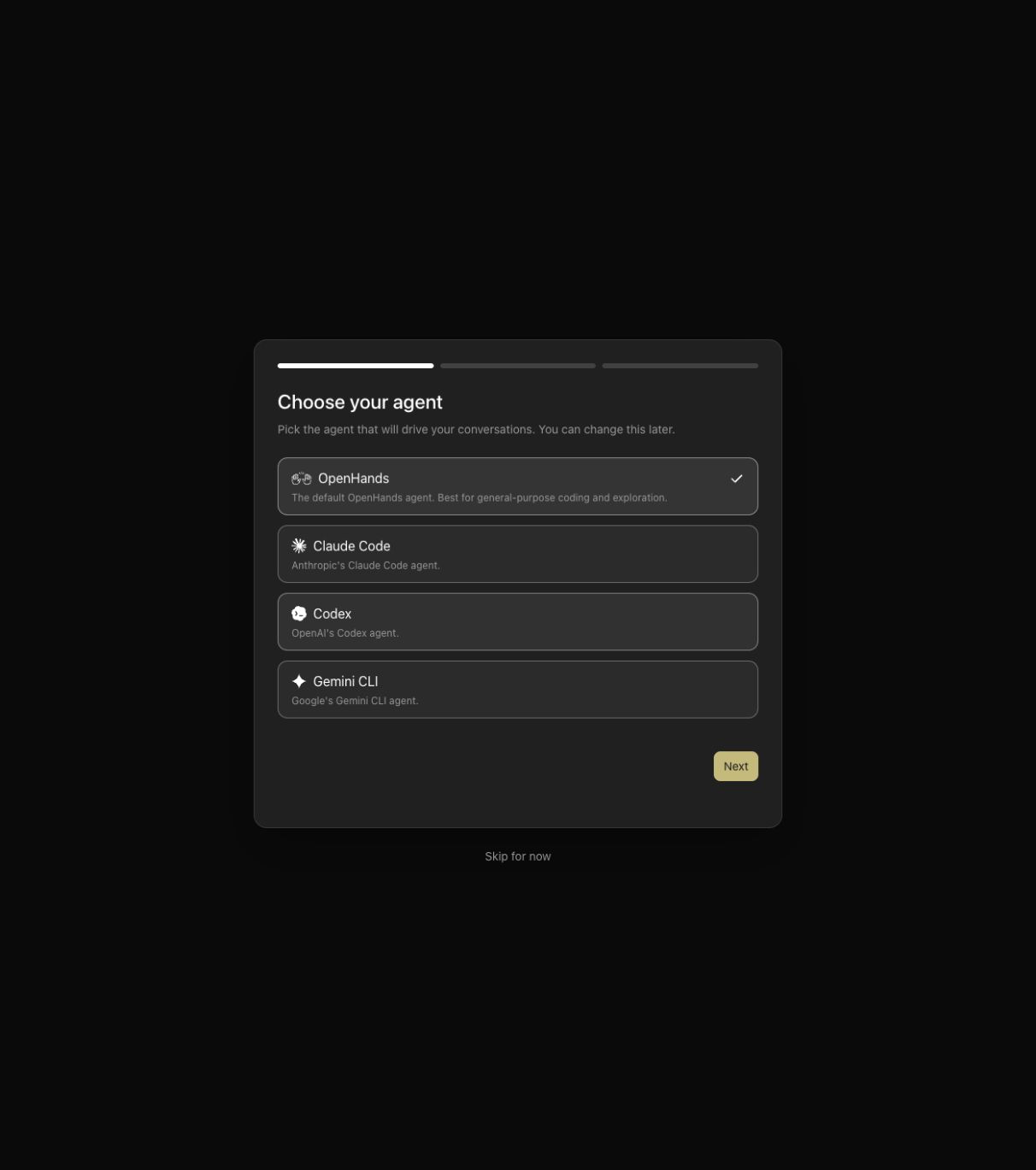
On first launch, choose **OpenHands**, then **Next**. The other choices, including Codex, are ACP agents with their own provider configuration and credentials; selecting one does not make it use your Canvas LLM profile.
[](/clients/openhands/choose-agent.jpg)
### Add the LLM profile
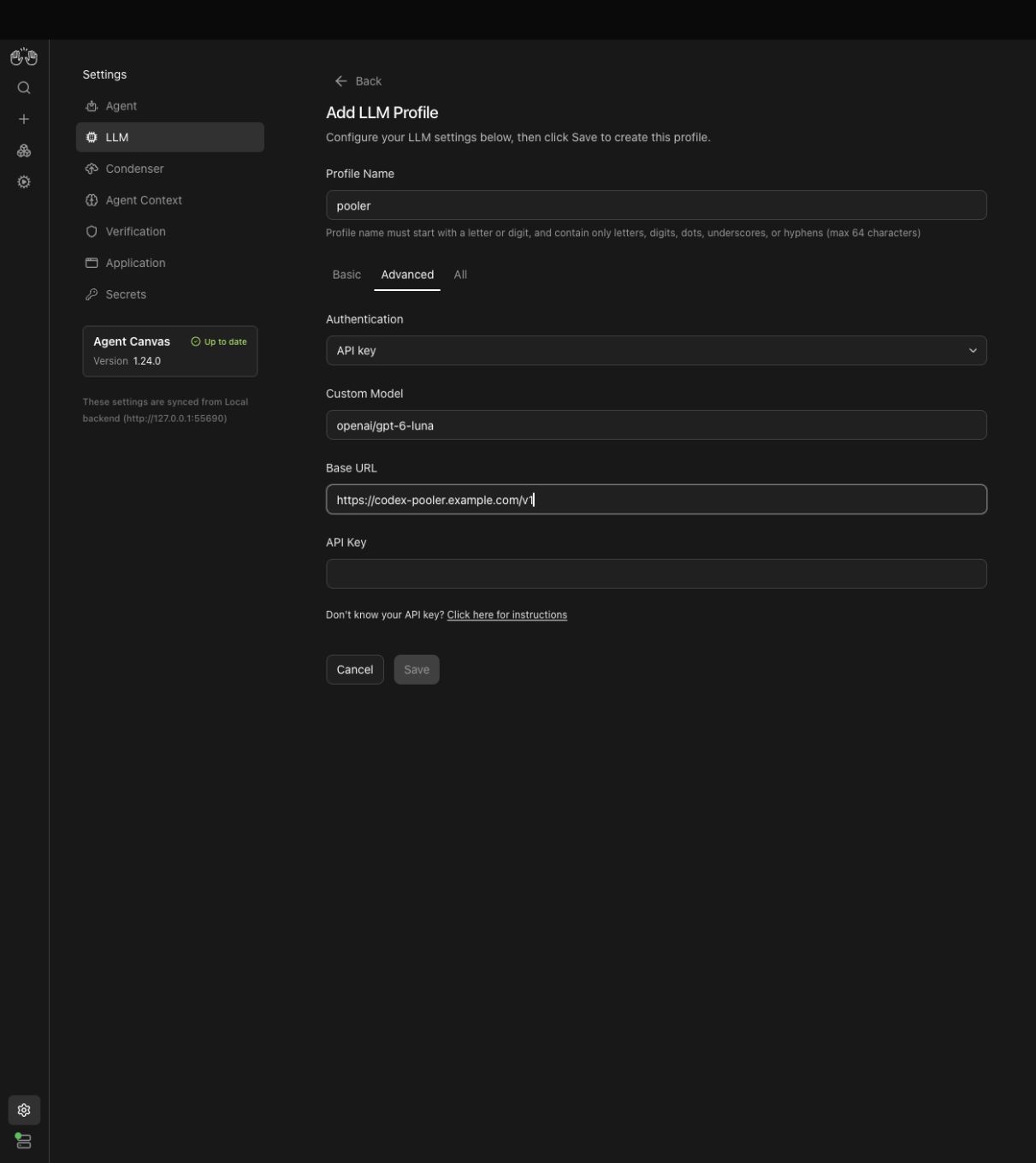
In **Set up your LLM**, select **Advanced**. After onboarding, the same configuration is under **Settings → LLM → Add LLM Profile**.
| Field | Value |
| --- | --- |
| Profile Name, when shown | `pooler` |
| Authentication | `API key` |
| Custom Model | `openai/gpt-6-luna` |
| Base URL | `https://codex-pooler.example.com/v1` |
| API Key | Your Codex Pooler **Pool API key** |
The screenshot intentionally leaves the key empty. Enter your own key before saving. This key is distinct from the backend access key used to connect the browser to Agent Canvas.
[](/clients/openhands/llm-profile.jpg)
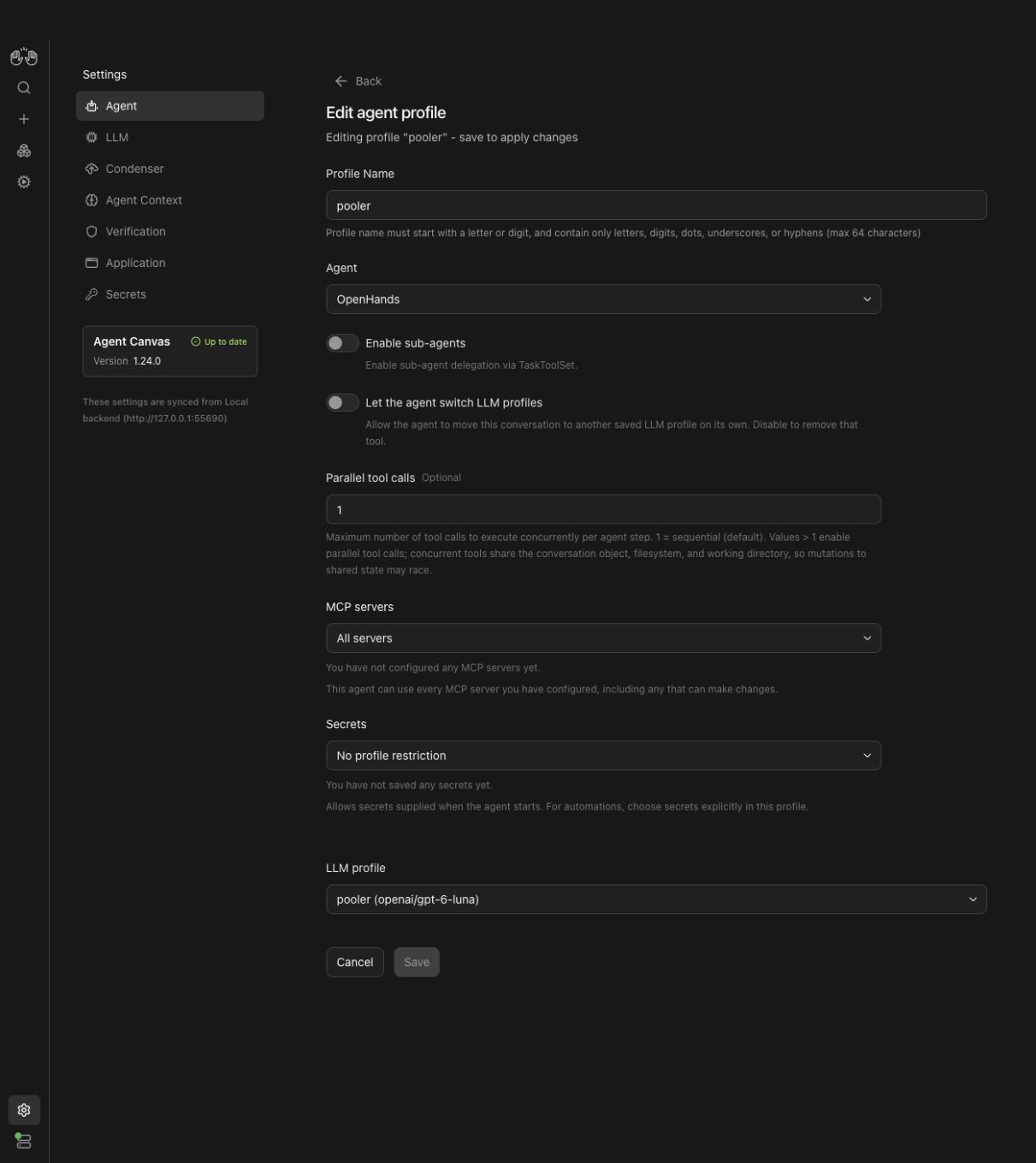
Save the profile. Under **Settings → Agent**, edit the native OpenHands agent profile and select `pooler` as its LLM profile. Set that agent profile active, then choose it for a new conversation. A default LLM profile alone does not override an agent profile that references a different model.
[](/clients/openhands/agent-profile.jpg)
### Reach Pooler from Docker
If Pooler runs on the host at `http://localhost:4000`, use **`http://host.docker.internal:4000/v1`** as the Canvas Base URL on Docker Desktop. Inside a container, `localhost` refers to that container.
On Linux Docker Engine, add `--add-host=host.docker.internal:host-gateway` to the Canvas container and ensure the Pooler listener is reachable through that host gateway; a host listener bound only to loopback may not be reachable. When both services share a Docker network, use Pooler's service hostname and internal port instead. Use your externally reachable HTTPS URL for a remote Canvas backend.
The browser reaching Pooler does not prove the backend can reach it. Saved profile settings live on the selected backend; configure the backend that will actually execute the conversation. See the upstream [model configuration guide](https://docs.openhands.dev/openhands/usage/agent-canvas/model-configuration).
## Choose a model
Use `openai/` in **Custom Model**. The verified example is `openai/gpt-6-luna` in Full and Lite serving modes. Keep the `openai/` prefix and use the exact model ID exposed by your Pool.
For this model, Agent Canvas 1.24.0 selects the Responses API automatically. Native agent profiles stream their tool turns; automatic conversation titles use a separate collected response. Leave **API Mode** at `auto` for this tested configuration. The **All** tab exposes endpoint and capability overrides for other configurations; changing those settings requires its own verification.
## Verify the connection
1. Open a mounted test workspace and start a conversation with the configured OpenHands agent profile.
2. Ask the agent to create a small file with specific contents using its terminal tool. Check the file on disk.
3. In the same conversation, ask it to read that file with its file editor and confirm the contents. Check that both tool results complete without errors.
4. In Pooler's request logs, match the time, Pool API key and selected model. Require successful attempts, known token usage and recorded settlements. Title generation can add requests beyond the visible user turns.
A successful HTTP status alone does not prove the client accepted a tool call. Confirm the workspace result and the follow-up tool result as well. Canvas uses LiteLLM internally, so the user-agent label alone is not enough to identify this client.
## Sub-agents and parallel tools
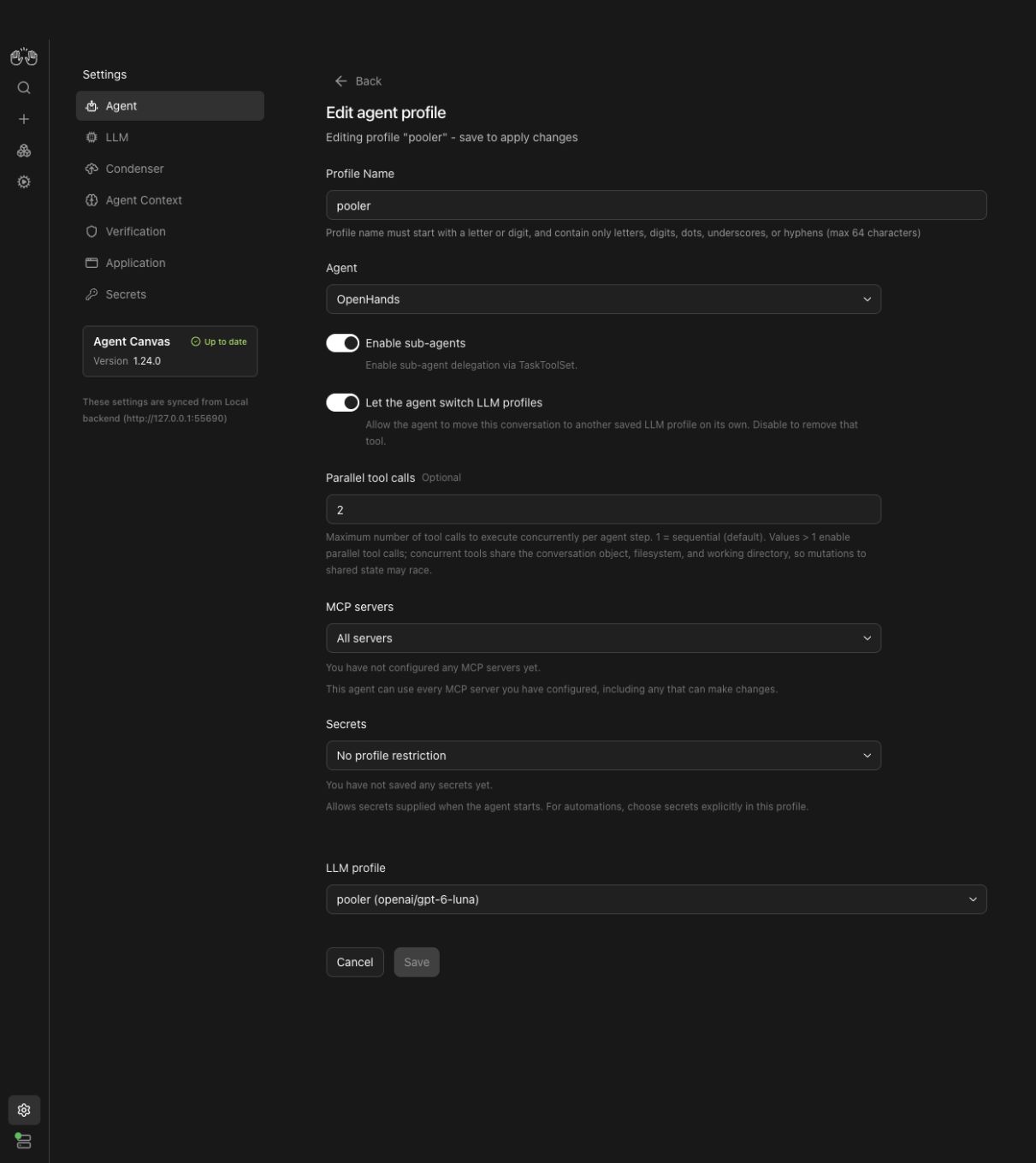
Under **Settings → Agent**, **Enable sub-agents** adds the delegation tool. The selected workspace also needs usable sub-agent definitions. In the tested Docker release, the backend's built-in sub-agent list was empty: enabling the toggle alone produced `Unknown agent` errors. Workspace definitions loaded successfully without modifying the image.
For a simple worker, add this file in your mounted project:
```markdown title=".openhands/agents/sample-worker.md" frame="code"
---
name: sample-worker
description: Complete an assigned task in the current workspace.
model: inherit
tools:
- terminal
- file_editor
---
Complete the assigned task and report the result to the parent agent.
```
Enable sub-agents, set **Parallel tool calls** to `2`, and start a new conversation in that workspace. Ask the parent to delegate two independent tasks to `sample-worker`, then check both child results and the parent's continuation.
[](/clients/openhands/subagents-parallel.jpg)
| Serving mode | Verified behavior |
| --- | --- |
| Full | Two child tasks completed concurrently with **Parallel tool calls = 2**; their workspace commands synchronized with each other before producing results. |
| Lite | Both child tasks and parent continuation completed sequentially. Pooler sets `parallel_tool_calls=false` in Lite, so increasing the Canvas concurrency limit does not enable parallel model tool calls. |
Use Full for work that requires simultaneous child execution. A child reporting “completed” can still have run a failed command; verify the actual tool exit and workspace result.
## Troubleshooting
| Symptom | Check |
| --- | --- |
| Profile validation cannot connect | Test reachability from the backend; replace a container-local `localhost` URL with the appropriate host gateway or shared-network service URL. |
| Authentication fails | Use a Pool API key in the LLM profile, separate from the Canvas backend access key. |
| The conversation uses a different model | Check the selected **agent profile** and its referenced **LLM profile**, then start a new conversation. |
| Tools fail after an HTTP 200 | Inspect the actual tool error and required arguments; verify serving mode and the exact file result. |
| Sub-agent calls return `Unknown agent` | Add the required workspace definition and start a new conversation; the toggle alone does not create agent definitions. |
| Parallel tool limit is above 1 but tasks run sequentially | Use Full for parallel tool calls; Lite deliberately disables that provider capability. |
| An ACP agent asks for its own login | Select the native **OpenHands** agent for this integration, or configure that ACP agent's provider separately. |
## Compatibility notes
Codex Pooler provides narrow OpenAI-compatible `/v1` support for selected SDK and agent routes. It doesn't provide full OpenAI API parity.
This guide covers released Agent Canvas and its native backend. It replaces the retired CLI instructions; CLI environment overrides and CLI smoke results do not certify Canvas. The observed workflow covers profile validation, terminal writes, file-editor readback, resumed conversations, streaming tool calls, collected title generation and configured sub-agents in Full and Lite. Real parallel child execution was verified in Full. ACP agents, image/browser tools and every model alias are outside these checks.
Use a backend-reachable `/v1` URL. Do not point the LLM profile at the Codex backend compatibility route.
The operator MCP endpoint is separate from `/v1` and is not needed for OpenHands model use. Use Pool API keys only for runtime requests.